A complete diagnostic & recovery protocol for business websites in Dubai and beyond.
Quick Summary:
A WordPress plugin conflict occurs when two plugins, active themes, or PHP scripts clash, leading to blank screens, broken WooCommerce checkouts, or unresponsive forms. To quickly fix it without losing data: create a complete backup, enable WordPress Debug Mode to identify the offending script, or temporarily rename the
/wp-content/plugins/folder via FTP/Host Manager to regain access to your dashboard.
What Is a WordPress Plugin Conflict?
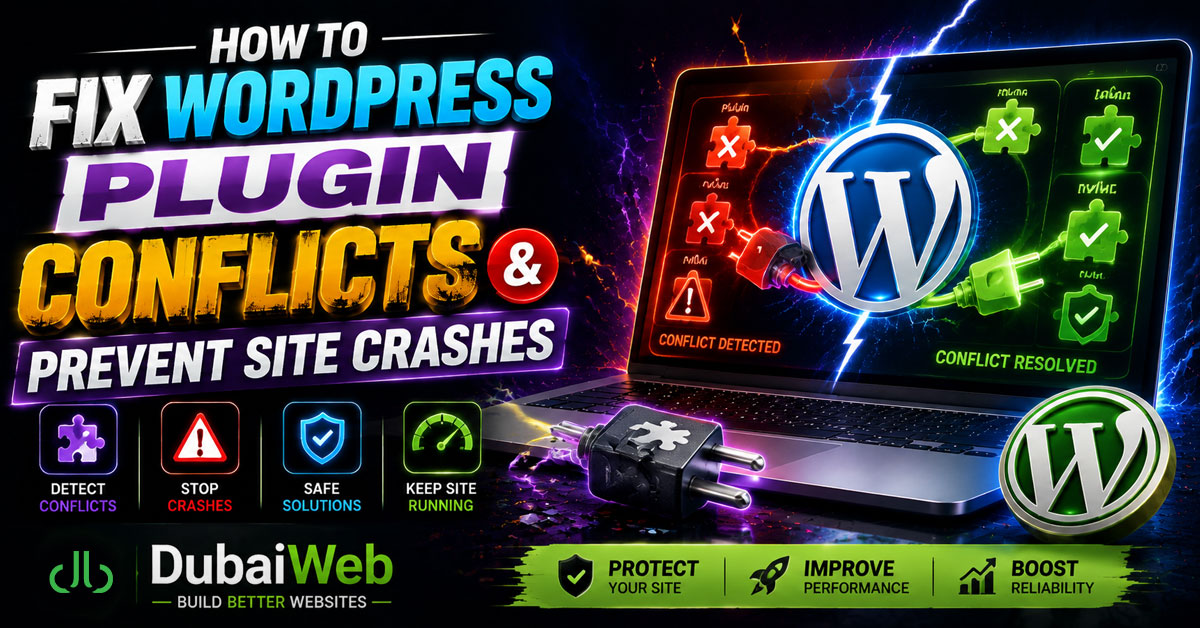
A WordPress plugin conflict happens when two or more plugins, your active theme, or core WordPress files attempt to access or modify the exact same system resources simultaneously. Because every plugin injects custom script files into your server environment, incompatible code updates can break essential site functions.
Unlike obvious web errors, plugin conflicts often run silently in the background. Your homepage may look perfectly functional while critical features—such as user registrations, payment gateways, and lead generation forms—fail completely.
Why Plugin Conflicts Are Dangerous for Business Websites
For commercial platforms and enterprise portals, an undetected conflict directly impacts revenue, brand reputation, and conversion rates. Key business risks include:
- Silent Revenue Loss: WooCommerce “Add to Cart” or checkout buttons become unclickable.
- Failed Lead Capture: Contact and booking forms stop executing without notifying site administrators.
- Performance Degradation: Unhandled script errors loop continuously, driving up server CPU usage and slowing page loading times.
- Broken Page Builders: Visual editors like Elementor fail to load, corrupting frontend page layouts.
When Are Plugin Conflicts Most Likely to Occur?
System instability usually surfaces during specific site management events:
1. Post-Update Script Incompatibility
Updating one plugin while keeping related page builders or payment extensions on older versions frequently creates JavaScript and PHP mismatches.
2. Outdated or Abandoned Plugins
Plugins left unmaintained for over six months rarely support newer PHP versions (such as PHP 8.1+) or modern WordPress core builds, triggering critical system exceptions.
3. Duplicate Functionality Overhead
Running redundant software components introduces functional overlap. Common triggers include:
- Installing two active SEO plugins concurrently (e.g., Yoast SEO alongside Rank Math).
- Running multiple caching engines or asset minification tools simultaneously.
- Deploying overlapping security firewalls that block legitimate admin AJAX requests.
Key Symptoms of a WordPress Plugin Conflict
If your website displays any of the following behavior, a plugin compatibility issue is the primary suspect:
- Sudden Page Speed Drop: Broken script loops negatively impact Google Core Web Vitals (LCP, CLS, and INP scores).
- Distorted Design & Styling: CSS stylesheets fail to load, resulting in unstyled text, broken header menus, or overlapping containers.
- Unresponsive Web Forms: Submissions hang indefinitely or output generic AJAX errors.
- WooCommerce Gateway Failures: Customers encounter blank screens or error banners during checkout.
Real-World Case Study: E-Commerce Payment Interruption
A corporate client in Dubai recently updated their gateway plugin on a live WooCommerce portal. While the storefront appeared intact, customers were unable to complete transactions due to a JavaScript execution error caused by a conflict between the updated payment gateway script and an existing page builder setup.
Resolution: The team isolated the conflicting console scripts, deployed a temporary patch, updated the layout dependencies in a staging environment, and fully restored transaction functionality without any data loss.
How to Diagnose a WordPress Plugin Conflict
Never delete or disable plugins randomly on a production website. Follow this structured diagnostic sequence:
1. Create a Full Site Backup
Before executing technical troubleshooting, export a complete snapshot of your site files and MySQL database via your web hosting dashboard or backup tools.
2. Enable WordPress Debug Mode
Access your site’s root directory via FTP or File Manager and update your wp-config.php file with the following directive lines to log server errors silently:
define('WP_DEBUG', true);
define('WP_DEBUG_LOG', true);
define('WP_DEBUG_DISPLAY', false);
System error logs will now write to /wp-content/debug.log, explicitly revealing which plugin file triggered the PHP error.
3. Inspect Browser Console Logs
Right-click your web page, select Inspect, and open the Console tab. Red error notices will highlight conflicting JavaScript files along with their directory paths.
Professional Methods to Resolve Plugin Conflicts
Method A: Systematic Deactivation Testing
To pinpoint the culprit on active sites, systematically deactivate plugins starting with the most recently updated item. For websites with dozens of extensions, use a binary isolation approach: deactivate half the plugins at once to halve your testing time.
Method B: Safe Troubleshooting Mode
Utilize staging plugins like Health Check & Troubleshooting. This framework creates a virtual session where plugins are disabled exclusively for logged-in administrators, ensuring public visitors experience zero downtime.
Method C: Recovering from Dashboard Lockouts
If a severe error prevents access to your /wp-admin panel, navigate to /wp-content/ in your host File Manager and temporarily rename the plugins folder to plugins-disabled. This safely forces all extensions to deactivate, restoring admin panel access immediately.
Handling the White Screen of Death (WSOD)
The White Screen of Death (WSOD) occurs when an unhandled PHP script error halts rendering entirely before outputting content. If your site displays a blank white screen, immediately inspect your host’s PHP error logs, verify host PHP version compatibility, and temporarily fall back to a default WordPress core theme (such as Twenty Twenty-Four).
Plugin Conflict Matrix & Resolution Strategy
| Conflict Type | Complexity | Recommended Action |
| Plugin vs. Plugin | Low | Isolate broken script via console; replace or deactivate redundant plugin. |
| Plugin vs. Theme | Medium | Update active theme framework; inspect for custom JavaScript overrides. |
| Plugin vs. PHP Version | Medium | Adjust PHP version via host panel or upgrade outdated plugin build. |
| WooCommerce Conflict | High | Test in isolated staging; verify gateway and inventory plugin API calls. |
Proactive Maintenance Checklist: Preventing Future Conflicts
- [x] Always create full backups prior to initiating updates.
- [x] Test major updates in a dedicated Staging Environment before applying them to your live website.
- [x] Update extensions individually, verifying site integrity after each step.
- [x] Audit your plugin library quarterly and uninstall unused or abandoned extensions.
- [x] Avoid running multiple plugins designed for identical tasks (such as dual caching or SEO tools).
- [x] Confirm PHP version compatibility with plugin developers before performing server upgrades.
Why Professional WordPress Management Matters for Dubai Businesses
In high-competition commercial hubs like Dubai, maintaining an optimized, secure, and resilient web presence is vital. Unplanned site outages, broken checkout flows, or performance slowdowns directly undermine digital marketing investments and client trust.
At Dubai Web, we specialize in end-to-end web design in Dubai, enterprise WordPress development, custom theme integration, and technical performance optimization. Our specialized maintenance frameworks ensure your digital infrastructure remains fully operational, fast, secure, and continuous search-optimized—eliminating unexpected technical roadblocks before they impact your business operations.
Summary
WordPress plugin conflicts are a predictable reality of maintaining a modular content management system. However, with systematic diagnosis—including debug logging, staging-environment updates, and routine code maintenance—you can protect your digital asset from costly operational downtime. A well-maintained platform requires more than dynamic visual design; it demands strict technical stability, ongoing security protocols, and expert infrastructure oversight.
Frequently Asked Questions (FAQ)
Why did my website break immediately after updating a WordPress plugin?
This typically occurs because the newly updated plugin code is incompatible with your theme, another active plugin, or your server’s current PHP version.
How can I identify which specific plugin is causing site errors?
Enable WP_DEBUG in your wp-config.php file to generate a debug log, check your browser’s inspect console for JavaScript errors, or systematically deactivate plugins one by one until the issue resolves.
Will deactivating or deleting a broken plugin delete my website data?
Deactivating or deleting a plugin generally retains your core database records and configuration settings. However, taking a full database backup prior to making changes is always recommended.
Does having many plugins installed slow down a WordPress website?
Plugin quantity is less critical than code quality. A few poorly coded plugins can impact server response times and Core Web Vitals significantly more than dozens of well-optimized extensions.
Can plugin conflicts negatively impact Google SEO rankings?
Yes. Plugin conflicts that cause site slowdowns, broken URLs, rendering errors, or extended downtime directly harm user experience and lower Google search visibility over time.