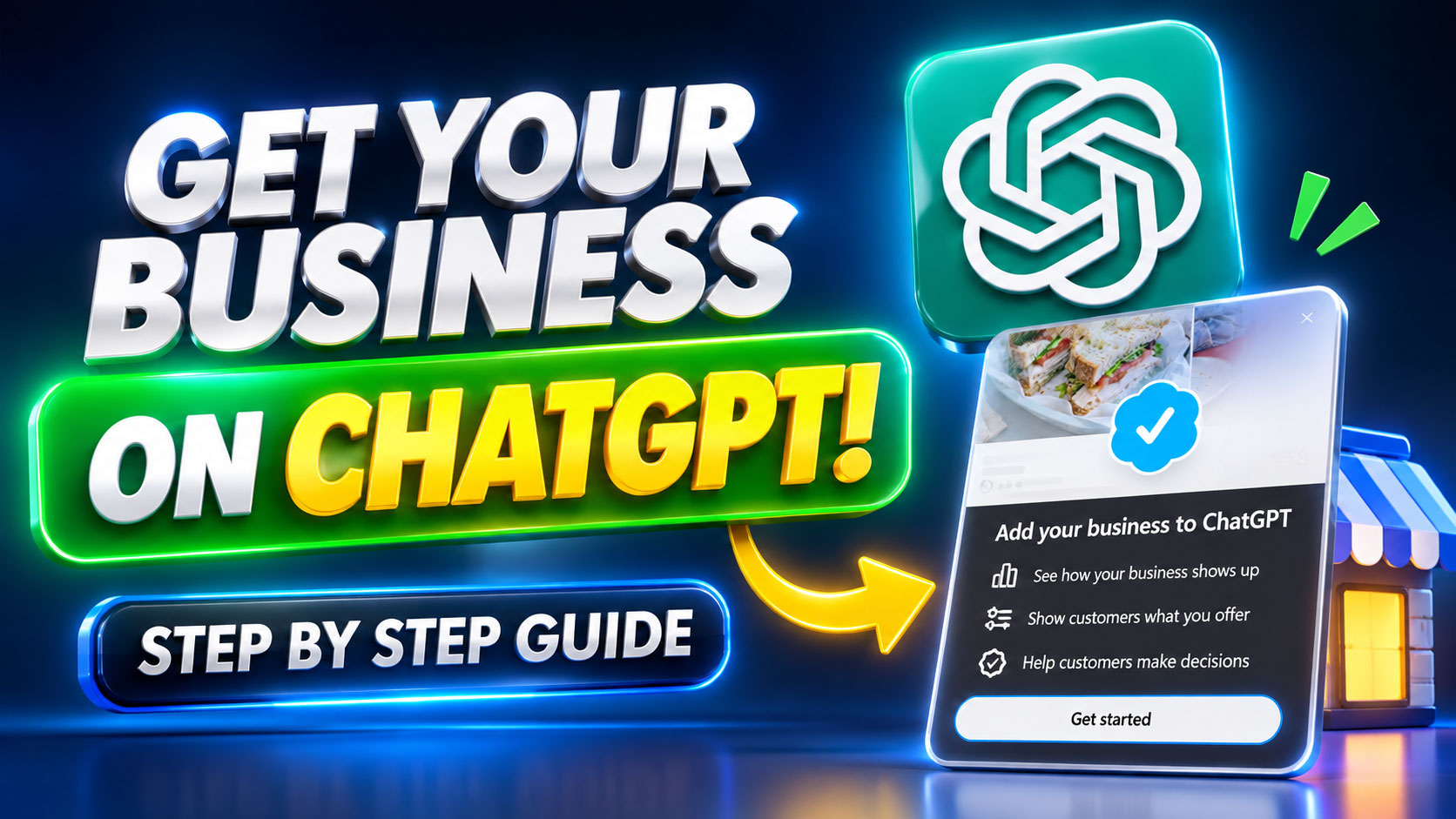
As artificial intelligence becomes an increasingly important part of how people search for information, discover products, and choose service providers, businesses need to pay attention to how they appear across AI-powered platforms.
ChatGPT is evolving beyond a tool for answering questions. OpenAI has introduced Businesses in ChatGPT, a new initiative that allows eligible businesses to claim their profiles, manage business information, and gain insights into how people discover and engage with them through ChatGPT.
In this guide, we will explain how to add your business to ChatGPT using ChatGPT Business Hub, verify your website, complete your business profile, and access the Business Hub dashboard.
Whether you run an online store, a professional service company, or another type of business, this tutorial will help you understand the process and prepare your business for this new way of connecting with potential customers.
What Is ChatGPT Business Hub?
ChatGPT Business Hub is OpenAI’s platform for businesses that want to manage how their information appears in ChatGPT.
Through Business Hub, eligible businesses can claim their business profiles and, after verification, manage important details such as their business information, website, and other relevant information.
The platform also provides aggregated insights that help businesses understand how users interact with their presence in ChatGPT.
Some of the key features include:
- Business profile management: Claim your business and manage its key information.
- Website and business verification: Verify your relationship with your business and website.
- Business information updates: Keep important details accurate and up to date.
- Engagement insights: Understand how often your business is mentioned and how many website clicks it receives.
- Discovery topics: Explore common topics associated with conversations in which your website is cited.
- Product information: Eligible businesses can provide product feeds containing pricing and availability information.
- Business Agents: Certain eligible businesses can build AI-powered agents to help customers explore their products and services.
These features are designed to help businesses provide more accurate information and better understand their visibility within ChatGPT.
Step 1: Open ChatGPT Business Hub
First, visit the official ChatGPT Business Hub page:
https://chatgpt.com/business-hub
This is the starting point for claiming and managing your business on ChatGPT.
Open the page and follow the available instructions to begin the registration process. Depending on your account, location, and business eligibility, you may see different options or verification requirements.
Make sure you are using an appropriate account and have access to your company’s website and business information.
Step 2: Find or Add Your Business
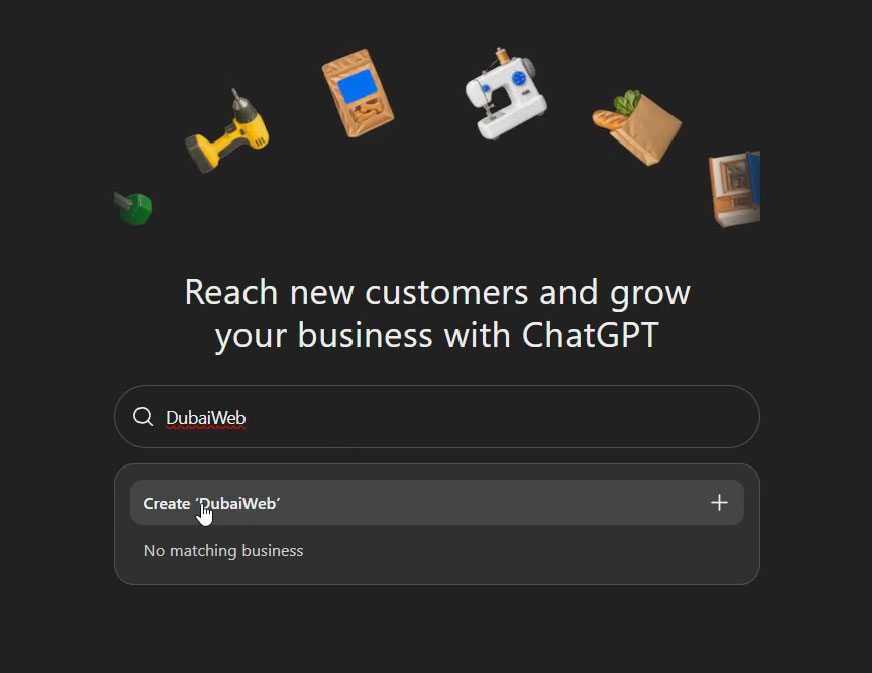
After opening Business Hub, follow the instructions to locate your business.
If your business already appears in the available listings, select the correct business profile and continue with the claiming process.
Make sure that the selected business matches your actual company. Check its name, website, and other identifying information before proceeding.
If the business information is not immediately available, follow the options provided by Business Hub to determine whether you can add or claim your business.
The available process may vary depending on the type of business and the information OpenAI already has.
Step 3: Choose How Customers Interact With Your Business
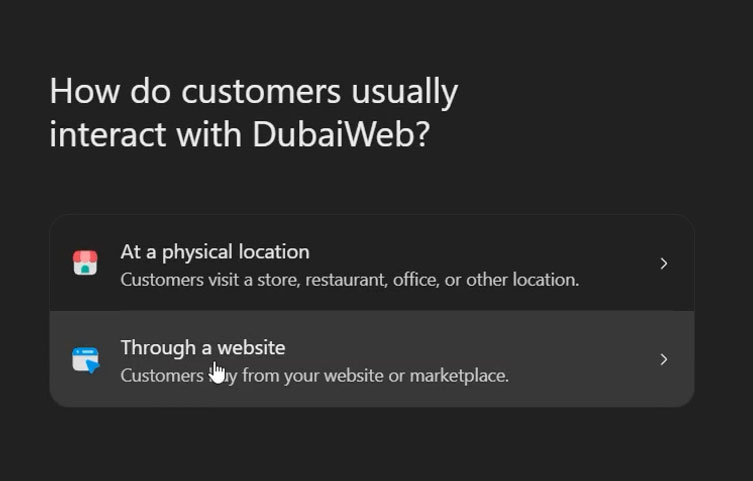
During the setup process, you may be asked to specify how customers interact with your business.
For example, your business might primarily operate through a website, an online store, or another type of service.
Choose the option that most accurately describes your business model.
This information helps determine which details are relevant to your business profile and which setup steps may be required.
For this tutorial, we are using DubaiWeb.org as an example of a business website.
Step 4: Enter Your Business Website
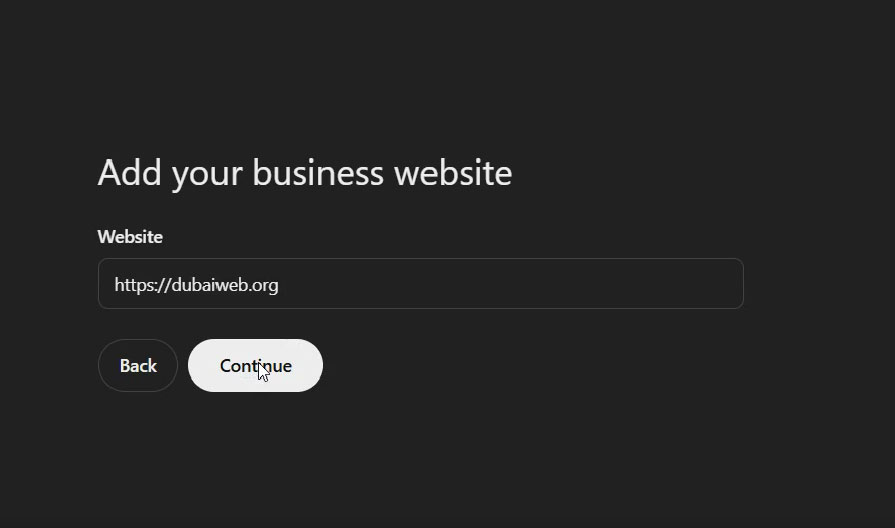
Next, provide your official business website address.
For example:
Make sure you enter the correct domain. It should be a website that belongs to your business or that you are authorized to manage.
Before continuing, check that:
- The website address is correct.
- Your website is accessible.
- You have administrative access to the domain or its DNS settings.
- The website represents the business you are trying to claim.
Depending on the verification method offered, you may need access to your domain registrar, DNS provider, business email address, or another verification channel.
Step 5: Verify Your Website Domain
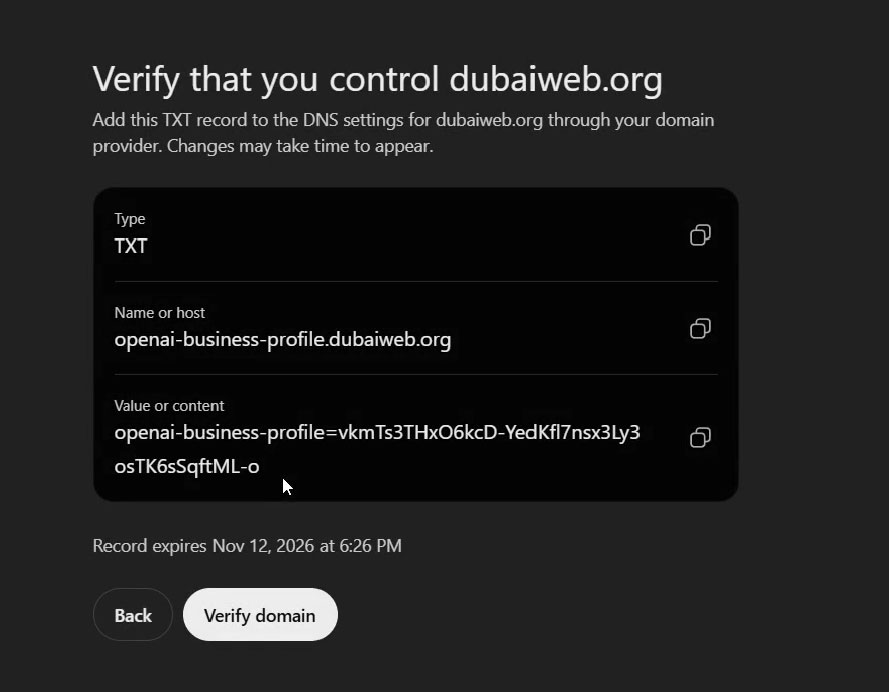
One of the most important parts of the process is verifying that you have control over the business website.
In the example shown in this tutorial, the verification process uses a DNS TXT record.
A DNS TXT record is a type of domain record that allows a service to check whether someone has control over a particular domain.
Business Hub provides the verification information that you need to add to your domain’s DNS settings.
Follow the instructions displayed on the screen and copy the provided TXT record exactly as shown.
Do not change or modify the verification value.
How to Add a TXT Record in Cloudflare
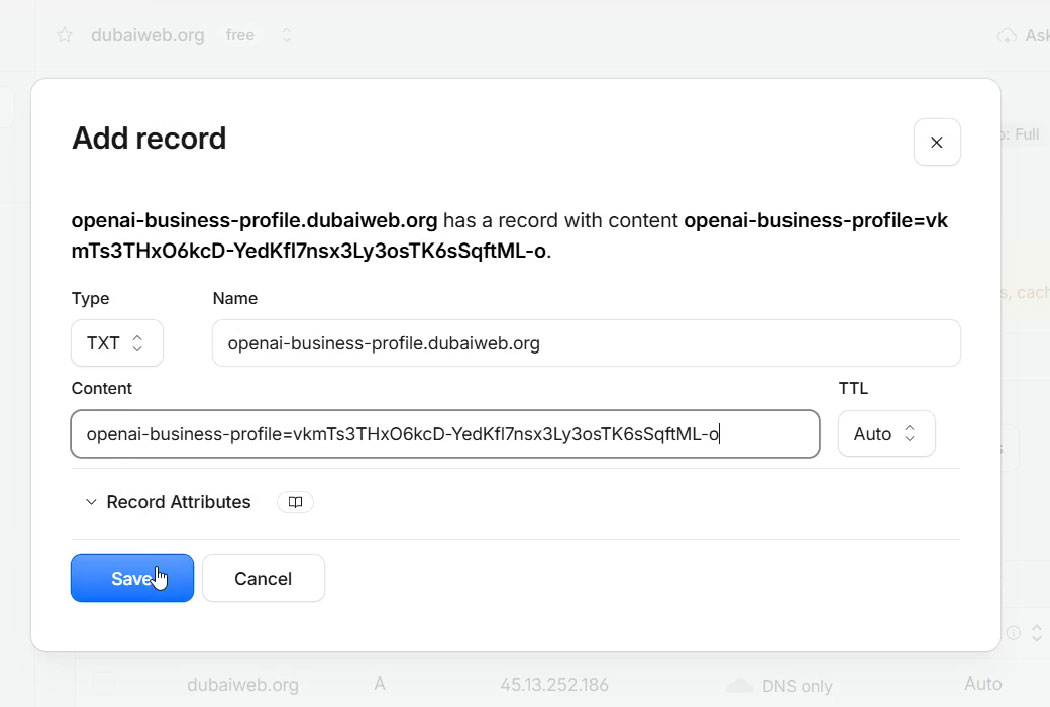
If your domain uses Cloudflare for DNS management, you can usually add the required record by following these steps:
- Log in to your Cloudflare account.
- Select the domain you want to verify.
- Open the DNS section.
- Go to the DNS Records area.
- Click Add Record.
- Select TXT as the record type.
- Enter the record name or host provided by Business Hub.
- Paste the verification value into the content field.
- Save the new DNS record.
Your DNS settings should now contain the verification record provided by OpenAI.
Important: The exact record name and value must come from your own Business Hub verification screen. Do not use another website’s verification information.
If your domain is managed by a different provider, such as Namecheap, GoDaddy, or your hosting company, add the TXT record through that provider’s DNS management panel instead.
Step 6: Complete Domain Verification
After adding the DNS record, return to the Business Hub verification page.
Review the information and click the verification button, such as Verify Control, if that is the option displayed in your account.
The system will attempt to confirm that the required DNS record exists.
DNS changes may not become visible immediately, so verification can sometimes take additional time.
If verification fails:
- Check that you selected the correct domain.
- Make sure the record type is TXT.
- Confirm that the record name and value match the information provided by OpenAI.
- Check that the DNS record has been saved successfully.
- Allow time for DNS changes to become visible.
- Follow the instructions in Business Hub if the verification attempt expires or needs to be restarted.
Once your domain is successfully verified, continue with the remaining business profile setup.
Step 7: Select Your Business Category and Add a Description
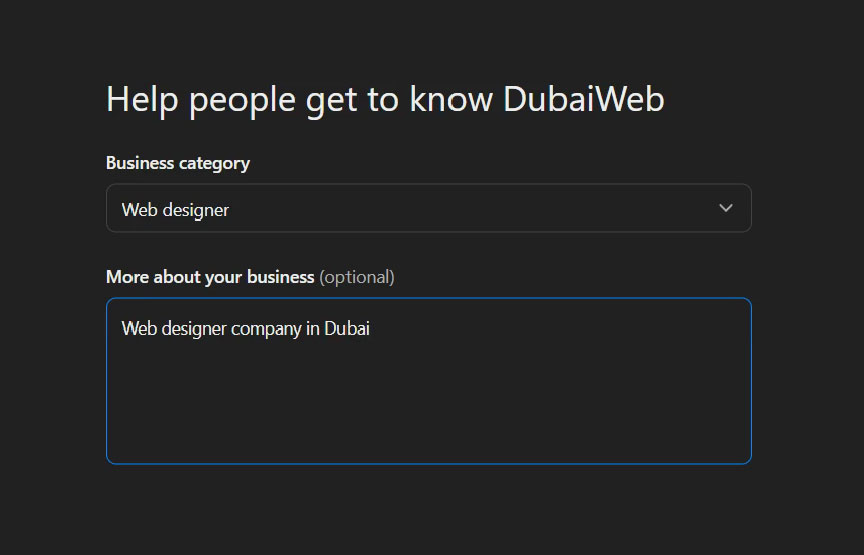
After completing the website verification step, you may be asked to provide more information about your business.
Start by selecting the category that best describes your company.
Choose the most relevant category rather than selecting a broad or unrelated option.
Next, write a clear and informative business description.
Your description should explain:
- What your business does.
- Which products or services you provide.
- Who your target customers are.
- Which markets or locations you serve.
- What makes your business useful or different.
For example, a web design company could describe its services as follows:
“DubaiWeb provides professional website design and development services for businesses looking to establish and grow their online presence. Our services include custom website development, mobile app development, and tailored software solutions.”
Keep the description accurate, professional, and easy to understand.
Avoid exaggerated claims or information that you cannot support.
Step 8: Add Your Business Contact Information
The next step is to complete your business contact information.
Depending on the fields available in your Business Hub account, you may be asked to provide details such as:
- Business email address.
- Contact phone number.
- Official website.
- Business address.
- Other relevant contact information.
Use accurate and up-to-date details.
If customers use these details to contact your company, make sure they are correct and consistent with the information published on your official website.
Consistency is important because incorrect or conflicting business information can create confusion for potential customers.
Step 9: Complete Delivery and Return Information
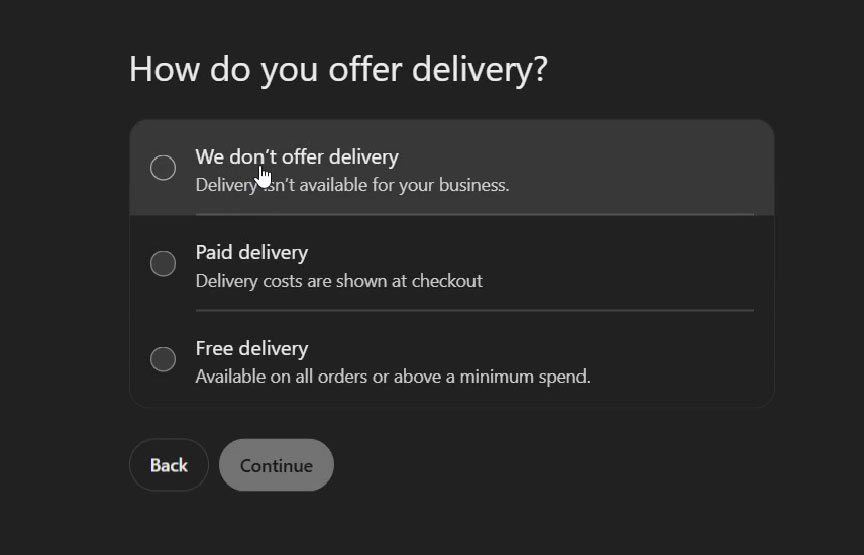
For businesses that sell products online, Business Hub may also request information about delivery and return policies.
These details help customers understand important aspects of purchasing from your business.
Depending on the business type, you may need to provide information about:
- Available delivery methods.
- Shipping areas.
- Estimated delivery times.
- Delivery costs or conditions.
- Return eligibility.
- Return periods.
- Refund and exchange policies.
If your business provides services rather than physical products, complete only the fields that are relevant to your business and follow the available instructions.
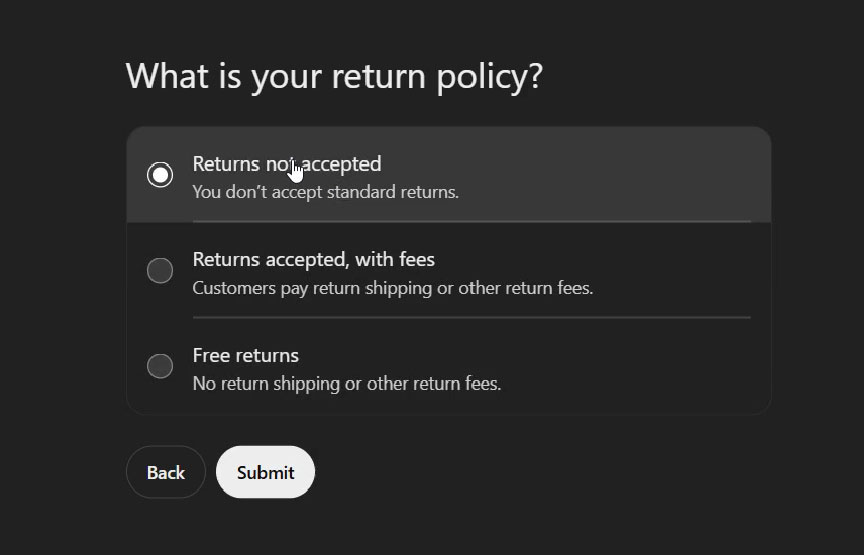
Make sure that the information matches your actual policies and the details published on your website.
Step 10: Review and Submit Your Business Profile
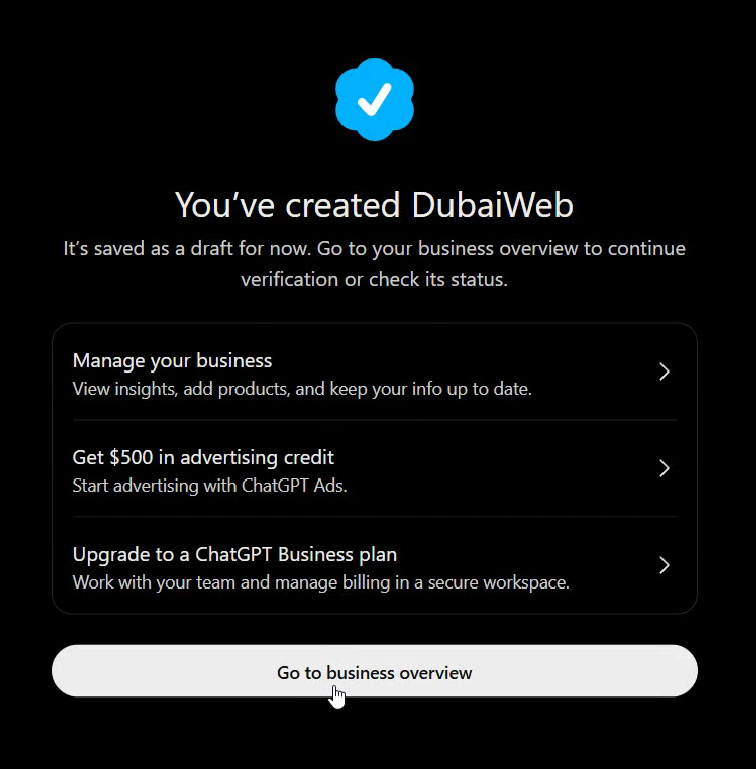
Before submitting your information, carefully review all the details you have entered.
Check your:
- Business name.
- Website address.
- Business category.
- Business description.
- Contact information.
- Delivery information, if applicable.
- Return policy, if applicable.
Correct any mistakes before completing the submission.
Once everything is ready, follow the final instructions to submit your business information.
Your business may need to go through additional verification or review before all features become available.
Step 11: Access Your ChatGPT Business Hub Dashboard
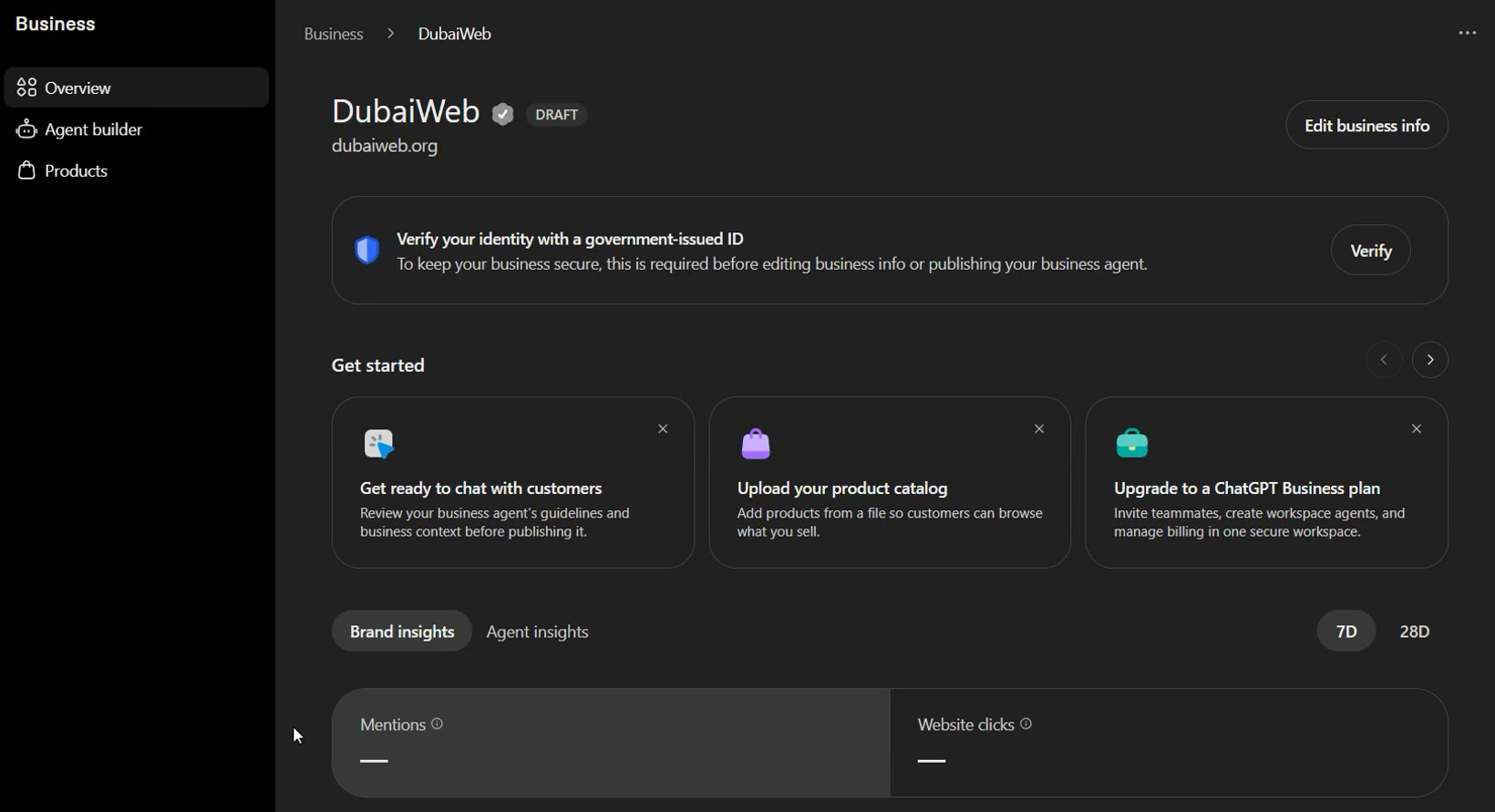
After completing the setup process, return to Business Hub to access your business dashboard.
The dashboard is where you can manage your business information and explore the insights available to your account.
Depending on your eligibility and the features currently enabled, you may be able to view information such as:
Business Mentions
Business Hub can show aggregated information about how often your business is mentioned in ChatGPT.
This can help you understand whether your business is appearing in relevant conversations.
Website Clicks
You may also be able to see the number of website clicks associated with your business presence in ChatGPT.
This provides another way to understand how users move from discovering a business to visiting its website.
Discovery Topics
Discovery topics help businesses explore common themes in conversations where their website is cited.
For example, a web design company might find that its website is associated with topics such as website development, business websites, online stores, or mobile-friendly design.
These insights can help you identify opportunities to improve your website content and communicate your services more clearly.
It is important to understand that these are aggregated insights. OpenAI does not provide businesses with users’ private ChatGPT conversations or individual Business Agent chats.
Can Adding Your Business to ChatGPT Guarantee More Customers?
No. Claiming your business through Business Hub does not guarantee that ChatGPT will recommend your company, display it in every relevant conversation, or place it above competitors.
Business Hub provides tools to manage business information and understand engagement. It is not a guaranteed ranking or advertising system.
Your business’s visibility in AI-powered search and discovery can depend on several factors, including the relevance and quality of your website content, the clarity of your services, the availability of accurate information, and how well your business matches a user’s request.
That is why completing your Business Hub profile should be considered one part of a broader digital visibility strategy.
How to Improve Your Business Visibility in ChatGPT
Claiming your business is a useful first step, but there are additional actions you can take to strengthen your online presence.
1. Publish Helpful and Relevant Website Content
Create useful pages that clearly explain your products, services, expertise, and areas of operation.
Answer common customer questions and provide practical information that helps visitors understand what your business offers.
2. Keep Your Business Information Consistent
Make sure your business name, website, contact information, and service descriptions are accurate across your website and other relevant online platforms.
Avoid publishing conflicting information.
3. Build a Professional Website
Your website should clearly communicate what your company does.
Use descriptive page titles, well-organized headings, informative service pages, and a structure that makes your content easy to understand.
4. Improve Technical SEO
Make sure your website is accessible to search engines and other systems that may retrieve public web content.
Pay attention to page performance, mobile usability, internal links, structured data where appropriate, and technical errors that could prevent important pages from being accessed.
5. Demonstrate Business Credibility
Publish genuine customer reviews, case studies, examples of completed projects, company information, and other relevant evidence of your experience.
Trustworthy and transparent information helps potential customers make better decisions.
6. Keep Your Information Updated
Review your business profile and website regularly.
Update service descriptions, contact details, pricing, product availability, delivery information, and policies whenever they change.
Accurate information is especially important when customers use AI tools to compare different businesses.
What Are ChatGPT Business Agents?
In addition to business profiles and engagement insights, OpenAI has introduced Business Agents for eligible organizations.
A Business Agent can provide an additional way for customers to interact with a business through ChatGPT.
For example, a customer exploring products could ask questions about available options, compare features, and get information based on the business’s provided data.
Businesses can build, test, and launch these agents if they meet OpenAI’s eligibility requirements.
At the time of OpenAI’s announcement, Business Agents were initially available to eligible ecommerce and online service businesses in the United States. Availability may expand over time, so businesses should check the official Business Hub information for the latest requirements.
Final Thoughts
ChatGPT Business Hub introduces a new opportunity for businesses to manage their information and better understand how people discover them through AI.
By claiming your business, verifying your website, completing your profile, and reviewing the available dashboard insights, you can take an important step toward preparing your company for the changing digital landscape.
However, registration alone is not enough. A professional website, useful content, accurate business information, strong technical SEO, and a trustworthy online presence remain important parts of building visibility and attracting customers.
If you want your business to compete effectively in the age of AI-powered discovery, now is a good time to review your digital presence and make sure your website is ready.
Frequently Asked Questions (FAQs)
1. What is ChatGPT Business Hub?
ChatGPT Business Hub is a platform that allows eligible businesses to claim and manage their business presence on ChatGPT. It helps businesses provide accurate information, manage their profiles, and access aggregated insights about how users discover and interact with them through ChatGPT.
2. How can I add my business to ChatGPT?
Visit the official ChatGPT Business Hub, find or add your business, follow the registration steps, provide your website and business details, and complete the required verification process.
3. Is website verification required to register a business?
Website verification may be required to confirm that you own or control the business website. The available verification method and instructions may vary depending on the registration flow. One possible method is adding a DNS TXT record to your domain settings.
4. How do I verify my website using Cloudflare?
If DNS TXT verification is offered, log in to your Cloudflare account, select your domain, open the DNS settings, and add the TXT record provided by Business Hub. Save the record, return to Business Hub, and select the verification option. DNS changes may take some time to become visible.
5. What information should I provide in my business profile?
Depending on the business type and the fields available, you may need to provide your business category, description, website address, contact information, delivery details, and return policy. Providing accurate and up-to-date information helps maintain a reliable business profile.
6. Is ChatGPT Business Hub free to use?
The availability and pricing of Business Hub features may depend on the specific service and eligibility requirements. Check the official Business Hub website for the latest information about available features and any applicable costs.
7. Does adding my business to ChatGPT guarantee that it will be recommended to users?
No. Claiming or registering a business does not guarantee that ChatGPT will recommend it, display it in every relevant conversation, or rank it above competitors. Discovery can depend on multiple factors, including the user’s request, available information, and relevance.
8. Can I edit my business information after registration?
Business Hub is designed to help eligible businesses manage their business information. Available editing options may vary, but you should use the dashboard to review and update the information whenever the relevant controls are available.
9. What insights can I see in the Business Hub dashboard?
Depending on feature availability, the dashboard may provide aggregated insights into how users discover and interact with your business through ChatGPT. These can include business mentions, website clicks, and topics or queries associated with business discovery.
10. Does my business need an online store to join ChatGPT Business Hub?
Not necessarily. The registration experience may support different types of businesses and online services. However, certain advanced features, such as product feeds or Business Agents, may have additional eligibility requirements.
11. What should I do if my domain verification fails?
First, check that the TXT record has been copied correctly, including its name and value. Make sure it has been added to the correct domain in your DNS provider. Allow time for DNS propagation, then try verification again. If the problem continues, follow the troubleshooting guidance provided by Business Hub.
12. How can I improve my business visibility in ChatGPT?
Start by maintaining a professional website with clear service and product descriptions, accurate contact information, useful content, and a consistent brand identity. Make sure your website is accessible to search engines and keep your business information up to date. Registering through Business Hub can help manage your business presence, but it does not guarantee visibility or recommendations.