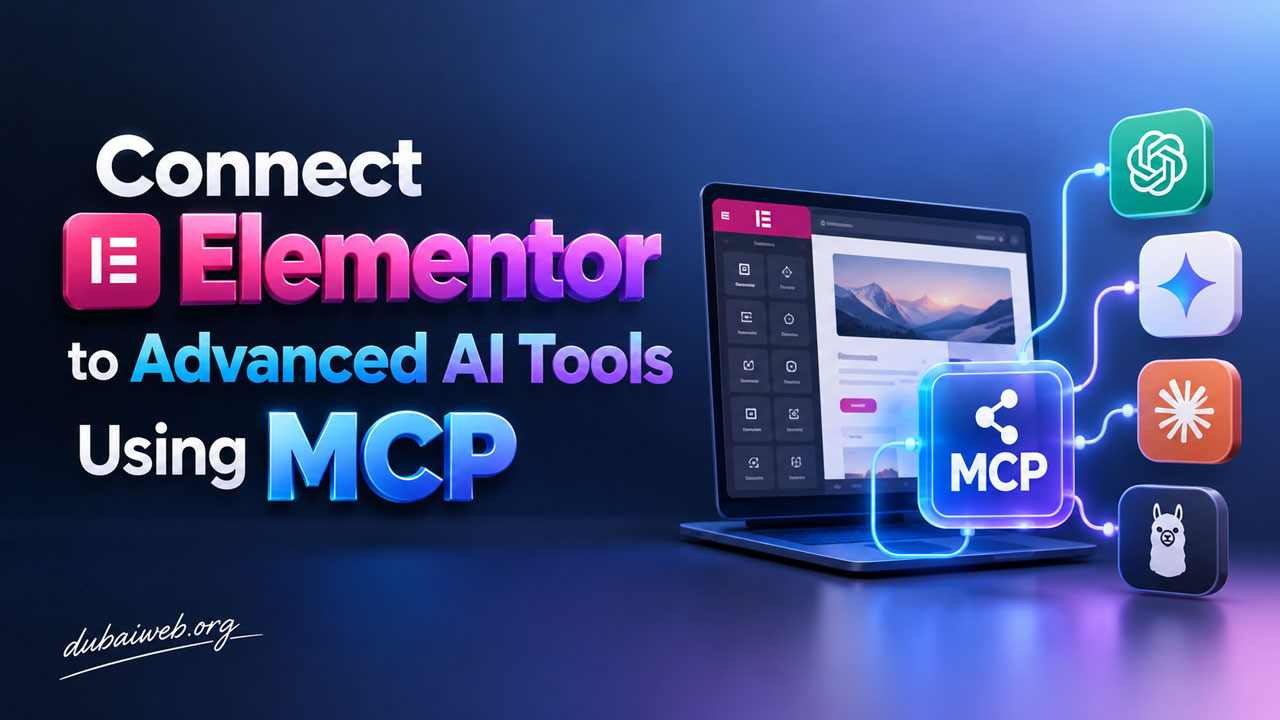
Elementor has introduced a significant update that allows users to connect external AI tools directly to their WordPress visual editor using the Model Context Protocol (MCP). According to reports by Dubai Web, this integration enables developers to use powerful third-party AI clients to manage site layouts, build elements, and handle dynamic data natively within the Elementor environment.
Understanding Elementor MCP
The Elementor Model Context Protocol (MCP) serves as a communication bridge between the Elementor editor and external AI applications. Instead of being restricted to a single built-in AI assistant, this protocol allows users to leverage sophisticated tools like Claude, Cursor, or Codex. These external agents can interact with WordPress AI Abilities to read page structures, create atomic elements, manage global classes and variables, and update site templates without the user leaving their preferred development environment. For information about our services, visit Web Design in Dubai.
System Requirements and User Permissions
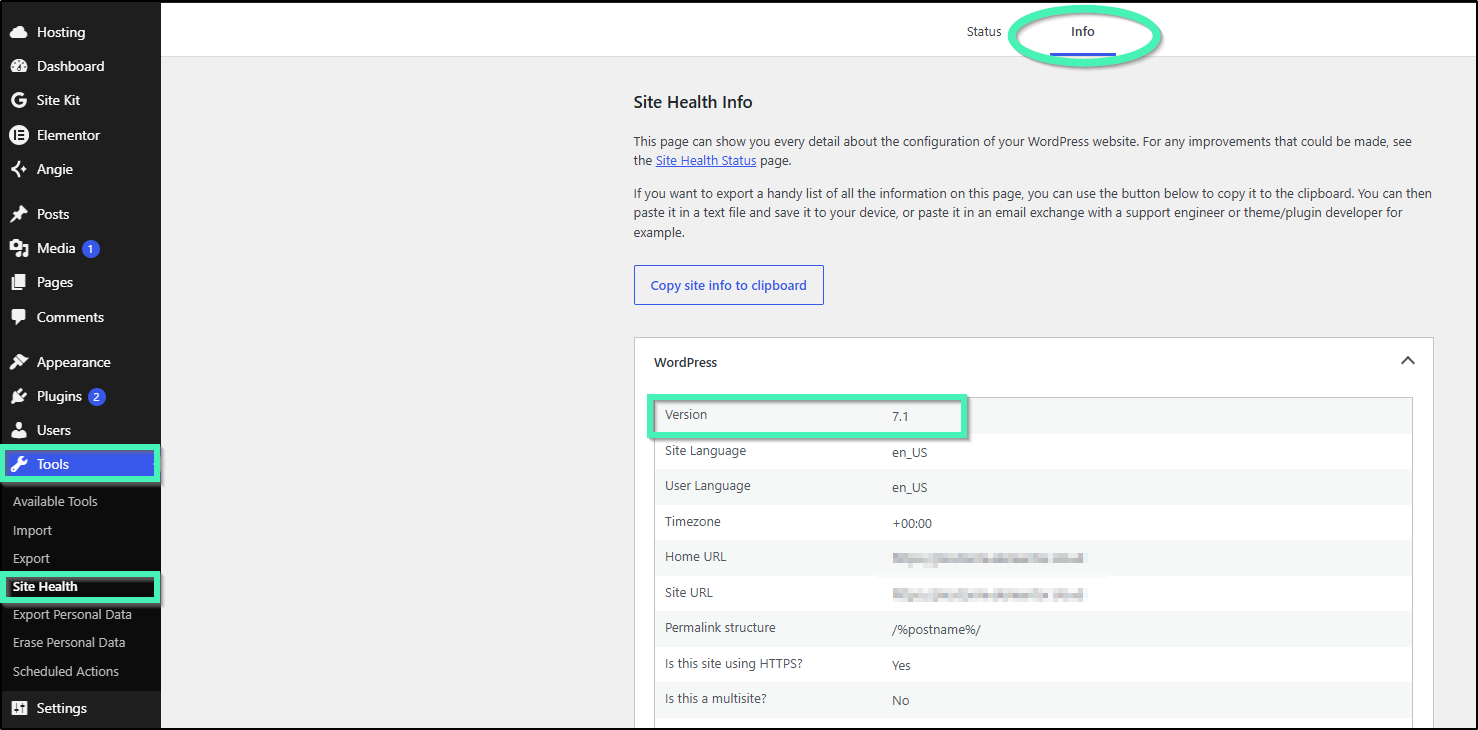
To ensure a smooth connection between your AI client and your website, certain technical prerequisites must be met. Users should verify their software versions before attempting the setup. Integrating advanced AI workflows is increasingly becoming a standard in to enhance productivity.
- WordPress Core: Must be version 6.8 or higher.
- Elementor Plugin: Both Elementor Core and Elementor Pro must be version 4.3.0 or higher.
- User Permissions: The connected AI tool operates under the permission profile of the logged-in WordPress user. This means an AI agent cannot perform any actions, such as modifying settings or publishing content, that exceed the capabilities of the user’s assigned role.
If you encounter issues during setup, you may need to troubleshoot your installation. Read more: How to Fix Elementor Editor Stuck on Loading.
How to Connect an AI Tool to Elementor
Linking your preferred AI client to your WordPress site is a straightforward process that involves generating a connection script. Follow these steps:
- Navigate to the WordPress admin dashboard and go to Elementor > Elementor MCP (or find it within the Editor menu under Elementor > Editor > Elementor MCP).
- Click the button labeled Enable MCP access.
- Select your desired AI tool from the available categories, which include Claude Code, Claude Desktop, Codex, Cursor, or Other.
- Check the acknowledgment box to confirm you understand that generating a prompt will create an application password for the site.
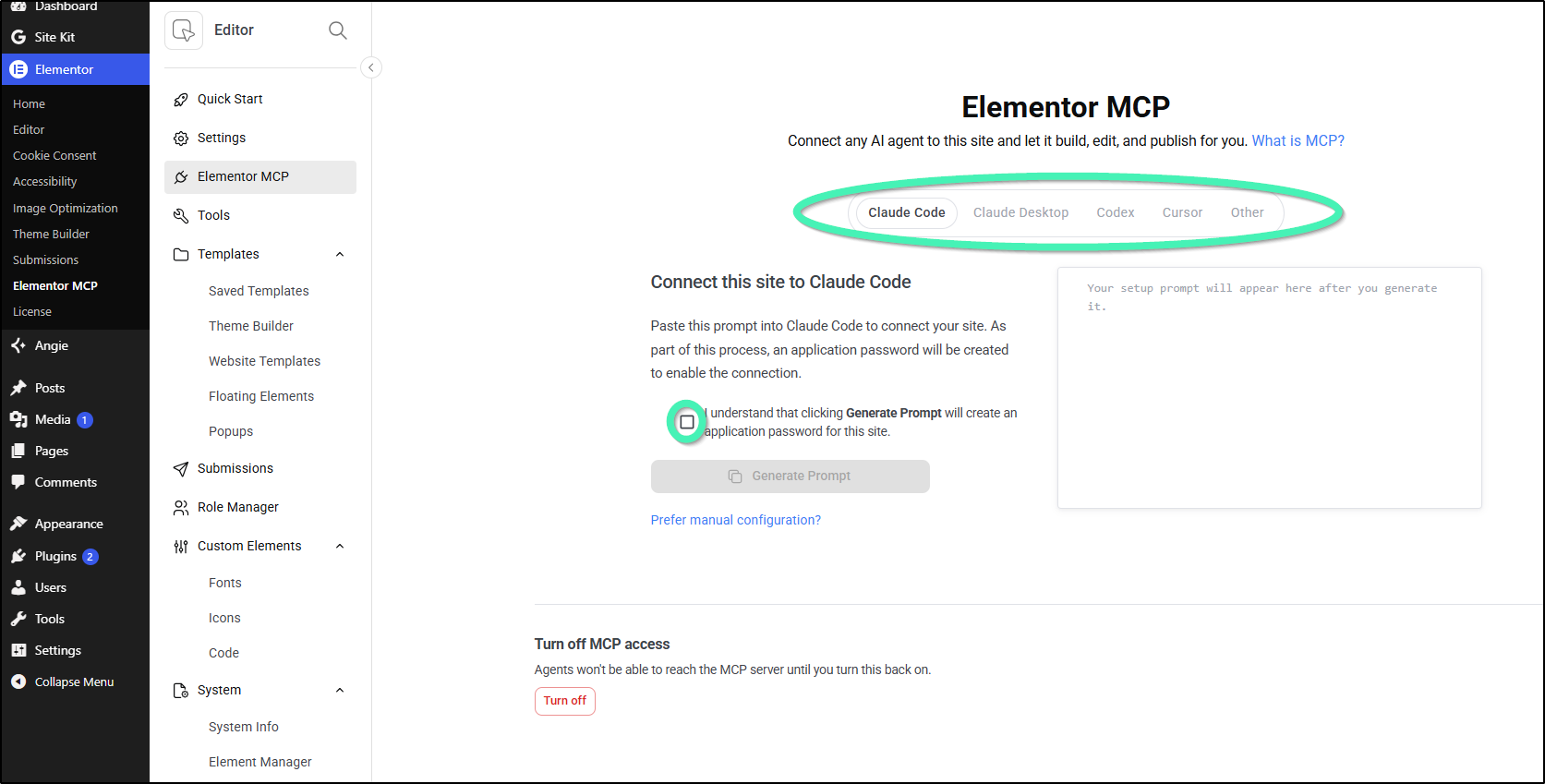
- Click the Generate Prompt button to produce your output script and application password.
- Click Copy prompt to transfer the connection details to your clipboard.
- Paste the generated setup prompt into your external AI tool to establish the link.
Supported AI Clients
Elementor MCP is designed to work with several major development environments and open-protocol clients:
- Claude Code and Claude Desktop: Provides direct connection paths for Anthropic’s desktop application and terminal tool to inspect and build layouts.
- Codex and Cursor: Offers native integration for developers using AI-powered IDEs and coding assistants.
- Third-Party MCP Clients: Because it follows the open Model Context Protocol standard, it is compatible with any custom or self-hosted AI tool.
Read more: Beyond ChatGPT: 7 Free AI Tools to Create Amazing Website Content in 2026.
Managing and Revoking MCP Access
Users maintain full control over which AI agents are connected to their WordPress installation. You can revoke access for specific tools or disable the feature entirely.
Revoking Individual Client Access
If you wish to disconnect a specific AI client, follow these steps:
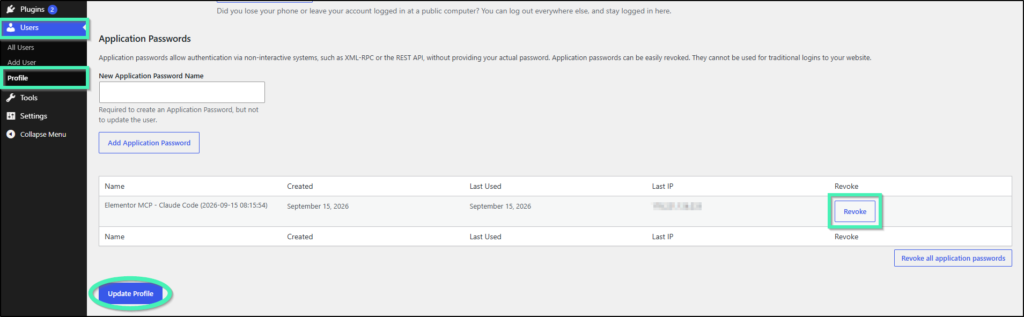
- Navigate to Users > Profile in your WordPress admin menu.
- Locate the Application Passwords section.
- Find the specific entry for the client (for example, Elementor MCP – Claude Code).
- Click the Revoke button located next to that application password.
Disabling MCP Access Site-Wide
To block all connected AI agents from reaching the MCP server across your entire site, you can perform a site-wide shutdown:
- Go to Elementor > Elementor MCP in your WordPress panel.
- Scroll to the bottom of the page to the Turn off MCP access section.
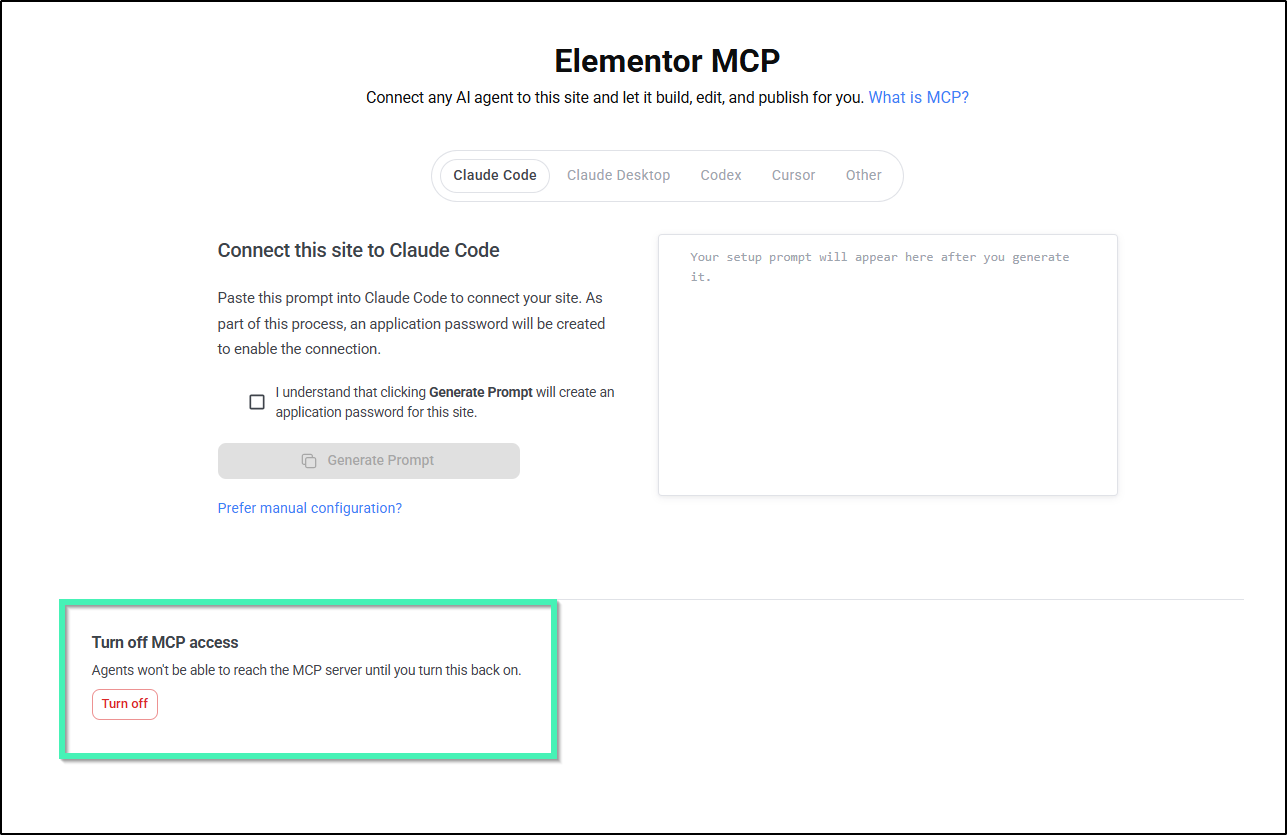
- Click the red Turn off button.
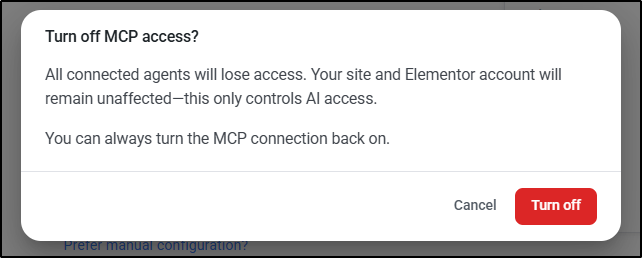
- Confirm the action in the popup window that asks if you want to turn off MCP access.
Frequently Asked Questions
What is Elementor MCP?
Elementor MCP, or Model Context Protocol, allows external AI tools like Claude or Cursor to interact directly with the Elementor visual editor to help build and manage website layouts.
Which AI tools are compatible with Elementor?
Supported tools include Anthropic’s Claude Code and Claude Desktop, developer tools like Codex and Cursor, and any other client that follows the open Model Context Protocol standard.
What are the minimum requirements to use MCP?
You need WordPress version 6.8 or higher and Elementor Core/Pro version 4.3.0 or higher.
Can the AI tool make changes I am not allowed to make?
No. The AI tool inherits the exact permissions of the logged-in WordPress user. It cannot exceed the capabilities of your specific user role.
How can I stop an AI tool from accessing my site?
You can revoke access for a specific tool via the Application Passwords section in your User Profile, or turn off MCP access entirely through the Elementor MCP settings.