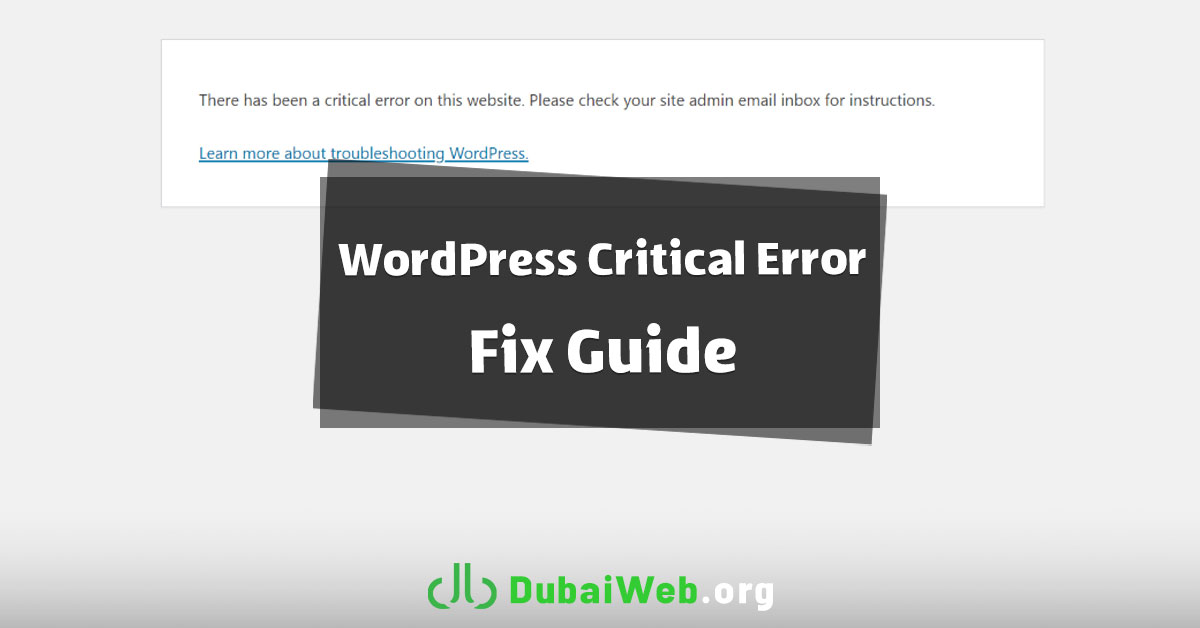
One of the most frightening messages WordPress site owners can encounter is the well-known error:
“There has been a critical error on this website.”
This error often takes the entire website offline and, in many cases, even blocks access to the WordPress dashboard. The key thing to understand is that this message is not the real cause of the problem. It is only a warning that a serious PHP or system-level error has occurred and needs proper troubleshooting.
In this guide, we walk through a step-by-step, professional approach to identifying and fixing this issue—the same process used in real support and development projects at Dubai Web, a company with strong expertise in web design in dubai.
Why Does This Error Occur in WordPress?
In most cases, the critical error is caused by one or more of the following:
- A plugin incompatible with the current PHP version
- A coding error in a theme or plugin
- An incomplete WordPress or plugin update
- Insufficient server resources (memory limit)
- Changing the PHP version without compatibility checks
Before fixing anything, the source of the error must be identified.
How to Fix the WordPress Critical Error in 6 Steps
Step 1: Enable WordPress Debug Mode (WP_DEBUG)
By default, WordPress hides technical errors. To see the real issue, debug mode must be enabled.
How to enable WP_DEBUG:
- Open the
wp-config.phpfile via hosting panel or FTP - Add or edit the following lines:
define('WP_DEBUG', true); define('WP_DEBUG_LOG', true); define('WP_DEBUG_DISPLAY', false);
- Save the file and reload the website
After this, WordPress logs errors in:
wp-content/debug.log
This file usually shows exactly which plugin or file is causing the problem.
Step 2: Check the Server Error Log
If debug.log is empty, the issue is likely recorded in the server error log.
Common locations:
- cPanel: Metrics → Errors
- DirectAdmin: Error Log
- Log files such as:
error_loglogs/error.log
If you don’t have access, contact your hosting provider and request the error log.
Step 3: Disable All Plugins (Without Dashboard Access)
Very often, a single plugin triggers the critical error. Even if you can’t access wp-admin, this can still be tested.
How to disable plugins via hosting:
- Open File Manager
- Go to:
wp-content/ - Rename the
pluginsfolder to something likeplugins_old
This disables all plugins instantly.
If the site loads, the problem is definitely plugin-related.
Rename the folder back and enable plugins one by one to find the faulty one.
Step 4: Switch to a Default WordPress Theme
Sometimes the issue is caused by the active theme.
If you don’t have dashboard access:
- Go to:
wp-content/themes/ - Rename the active theme folder
WordPress will automatically activate a default theme like Twenty Twenty.
If the site works, your theme is incompatible with your PHP or WordPress version.
Step 5: Check the PHP Version
PHP compatibility is one of the most common causes of this error.
Switching PHP versions without testing can instantly break a site.
Professional recommendation:
- Use a stable PHP version (such as PHP 8.1)
- Test changes on a staging environment first
- Never upgrade PHP blindly on a live website
In professional projects—from web design in dubai to international projects in India—this step is always tested before deployment.
Step 6: Increase PHP Memory Limit
Low memory can also trigger critical errors.
Add the following lines to wp-config.php:
define('WP_MEMORY_LIMIT', '256M'); define('WP_MAX_MEMORY_LIMIT', '256M');
Save the file and reload the site.
Final Thoughts
The message “There has been a critical error on this website” is not the end—it’s the beginning of proper troubleshooting.
By enabling debug mode, checking logs, disabling plugins correctly, verifying PHP versions, and increasing memory, over 90% of these issues can be resolved.
If your website is part of a serious online business or professional project, having a solid technical foundation from day one is essential. Experience at Dubai Web—active in advanced WordPress development and web design in dubai—shows that technical prevention is always cheaper and safer than crisis recovery.
This guide gives site owners a clear, structured path to fix critical errors without random trial and error.